Getting Started with Semantic Kernel: Microsoft's Open Source AI Library for .NET
Summary
If you’re a .NET developer looking to integrate AI into your applications, Semantic Kernel might be exactly what you need. This open-source library from Microsoft provides a simple and powerful way to work with different AI models in the .NET ecosystem.
What is Semantic Kernel? 🤔
Semantic Kernel helps you build smart agents that work well with your current code. It works with C#, Python, and Java, and gives you an easy way to create agents that make work processes faster across different types of apps.
Key Capabilities 💪
Semantic Kernel supports a wide variety of AI operations:
- Chat Completion - Build conversational AI applications
- Text Generation - Generate human-like text content
- Embedding Generation - Create vector representations of text
- Text to Image - Generate images from text descriptions
- Image to Text - Extract text and descriptions from images
- Text to Audio - Convert text to speech
- Audio to Text - Transcribe speech to text
Supported AI Models 🌟
One of the biggest advantages of Semantic Kernel is its support for multiple AI providers: OpenAI, Azure OpenAI, Hugging Face, NVIDIA, and many more providers.
This flexibility means you can switch between providers or use multiple providers in the same application without major code changes.
Core Components 🧩
Semantic Kernel is built around three main components:
Kernel 🧠
The kernel is the central orchestration component that manages all services and plugins. Think of it as the brain of your AI application - it coordinates between different AI services and handles the execution flow.
Getting started with Semantic Kernel is straightforward - you can create a kernel using the builder pattern:
// Simple kernel creation
var kernel = Kernel.CreateBuilder().Build();
Services
Services consist of both AI services and other supporting services necessary to run your application. This follows the Service Provider pattern in .NET, enabling dependency injection across all languages.
Here’s how you can add different types of services:
// Add AI services
kernelBuilder.Services.AddOpenAIChatCompletion(model, apiKey);

// Add supporting services
kernelBuilder.Services.AddLogging();
AI Services:
- Chat completion models for conversations
- Image generation services
- Text embedding services
- Audio processing services
Supporting Services:
- Logging services for monitoring and debugging
- HTTP clients for external API communication
- Other utilities for application support
Plugins
Plugins are additional components that allow the kernel to perform specific tasks beyond just calling AI models. These components are used by AI services and prompt templates to perform work. They give AI models the ability to work with real-time data and current information, not just the data they were trained on.
Here’s how you can add plugins to your kernel:
kernelBuilder.Plugins.AddFromType<TimePlugin>();
We can also create our own custom plugins. Here’s a simple example of a custom plugin:
public class CustomTimePlugin
{
    [KernelFunction]
    [Description("Retrieves the current time in UTC.")]
    public DateTime GetCurrentUtcTime() => DateTime.UtcNow;
}
To use this custom plugin, you would add it to your kernel just like the built-in plugins:
kernelBuilder.Plugins.AddFromType<CustomTimePlugin>();
Plugins can help with:
- Retrieving data from external databases
- Calling external APIs to perform actions
- Interacting with your application’s business logic
- Connecting to various services and systems
Complete Example
Here’s a full example that combines services and plugins:
Required NuGet Packages:
Microsoft.SemanticKernel
Microsoft.Extensions.Logging
Microsoft.Extensions.Logging.Console
Microsoft.SemanticKernel.Plugins.Core
using Microsoft.Extensions.DependencyInjection;
using Microsoft.SemanticKernel;
using Microsoft.SemanticKernel.ChatCompletion;
using Microsoft.SemanticKernel.Connectors.OpenAI;
using Microsoft.SemanticKernel.Plugins.Core;

var kernelBuilder = Kernel.CreateBuilder();

// Add AI services
// Model e.g. "gpt-4.1-mini"
// ApiKey you can get here: https://platform.openai.com/api-keys
kernelBuilder.Services.AddOpenAIChatCompletion(Model, ApiKey);

// Add logging services
kernelBuilder.Services.AddLogging();

// Add built-in plugins
// Normally when you ask a model to tell you the time, it will say it doesn't know or hallucinate an answer. Now it will use the plugin to get the current time.
kernelBuilder.Plugins.AddFromType<TimePlugin>();

var kernel = kernelBuilder.Build();
var chatCompletionService = kernel.GetRequiredService<IChatCompletionService>();

// Configure AI model behavior and enable automatic function calling
OpenAIPromptExecutionSettings openAIPromptExecutionSettings = new()
{
    FunctionChoiceBehavior = FunctionChoiceBehavior.Auto()
};

var history = new ChatHistory();
// Define the AI assistant's role and capabilities
history.AddSystemMessage("You are a helpful assistant that can answer questions about the time.");
// Ask a question that will trigger the TimePlugin
history.AddUserMessage("What time is it now?");

var result = await chatCompletionService.GetChatMessageContentAsync(
    history,
    executionSettings: openAIPromptExecutionSettings,
    kernel: kernel
);

// Response: The current time is 14:22 on Monday, 09 June 2025.
var response = result.Content;
This example demonstrates the power of Semantic Kernel’s function calling capabilities - the AI automatically uses the TimePlugin to get the current time when asked. In future posts, I’ll dive deeper into each of these concepts and show you how to build more complex applications.
Performance & Cost Considerations 💰
When working with Semantic Kernel in production, keep these important factors in mind:
Token Management:
- Tokens are charged per request (input + output tokens)
- Use MaxTokens to control costs and response length
- Consider caching responses for repeated queries
Rate Limits:
- Most AI providers have rate limits (requests per minute/day)
- Implement retry logic with exponential backoff
- Consider using multiple API keys for high-volume applications
Understanding Execution Settings
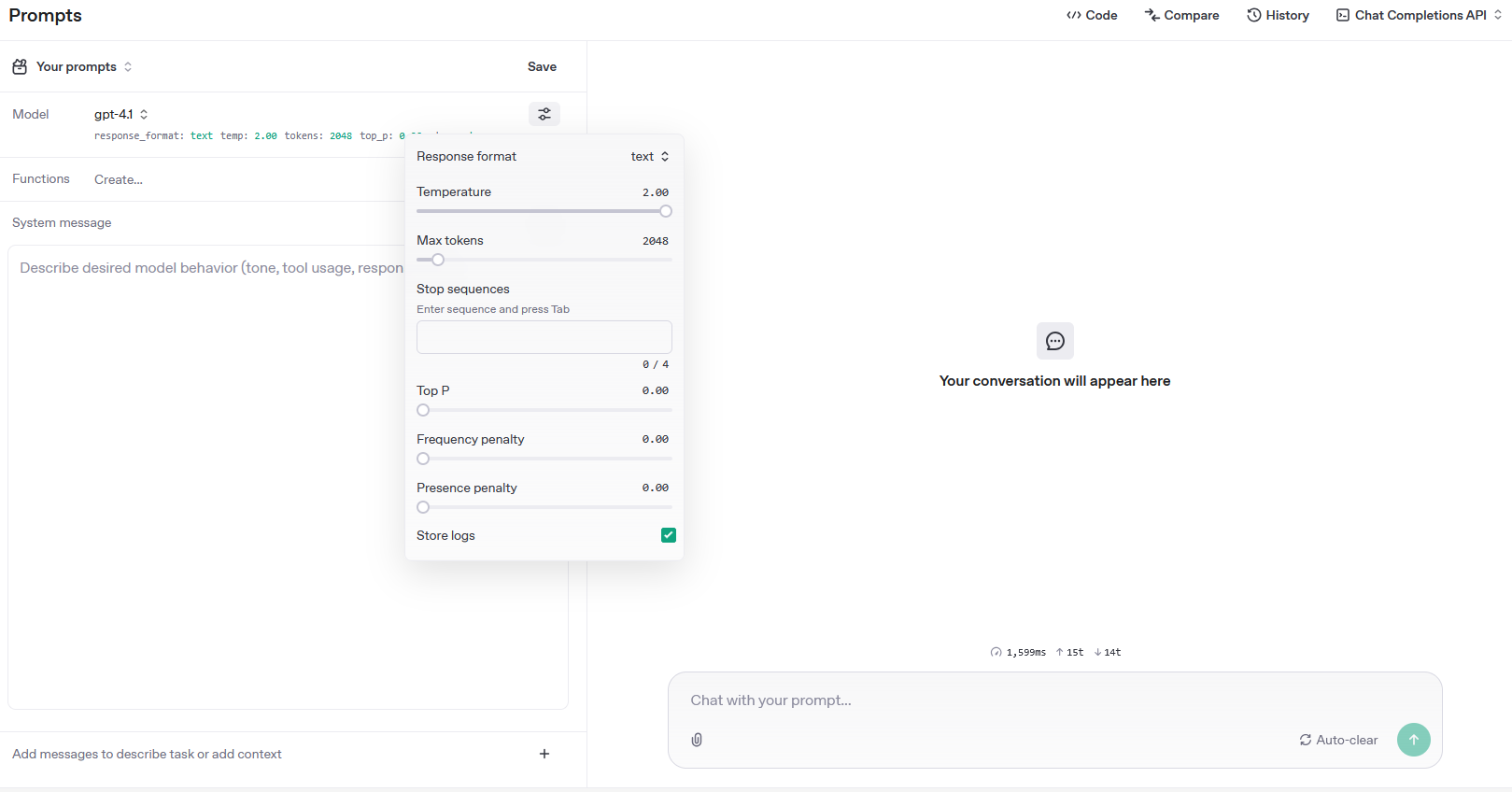
The OpenAIPromptExecutionSettings class allows you to control how the AI model behaves when generating responses. You can configure various parameters to fine-tune the output:
Token Sampling Strategies 🎯
Before diving into specific parameters, it’s important to understand how language models generate text. When predicting the next token (word or part of a word), the model calculates probability distributions over all possible tokens.
Greedy Sampling is the simplest approach - always pick the token with the highest probability. While this works well for classification tasks (like spam detection), it creates boring and repetitive text in language models. Imagine asking different questions and always getting responses built from the most common words!
Probabilistic Sampling is more interesting - instead of always picking the most likely token, the model samples according to the probability distribution. For example, given the context “The best programming language for enterprise applications is…”, if “C#” has a 45% probability and “Java” has a 35% probability, then “C#” will be chosen 45% of the time and “Java” 35% of the time across multiple generations.
This is where parameters like Temperature and Top-P come into play - they modify this probability distribution to control the balance between predictability and creativity.
Temperature (0.0 - 2.0)
Temperature controls randomness and creativity by affecting token selection from the probability distribution:
- < 1.0 – More conservative, selects high-probability words for predictable outputs
- 1.0 – Default setting, balanced between deterministic and creative responses
- > 1.0 – Increases randomness, selects less probable words for varied but potentially error-prone outputs
- 2.0 – Maximum creativity with very unpredictable responses
var settings = new OpenAIPromptExecutionSettings()
{
    Temperature = 0.2
};
Top-P (0.0 - 1.0)
Top-P (nucleus sampling) is similar to temperature in controlling output diversity, but works differently by only considering the most probable tokens whose cumulative probability adds up to the Top-P value:
- 0.1: Very focused - only considers the top 10% most probable tokens
- 0.5: Moderately focused - considers tokens up to 50% cumulative probability
- 1.0: No filtering - all tokens are considered
var settings = new OpenAIPromptExecutionSettings()
{
    TopP = 0.9
};
Key Difference: Temperature vs Top-P
- Temperature: Controls entropy (creativity/unpredictability) - 0 means same response every time, higher values increase randomness
- Top-P: Controls distribution of probable tokens - 1.0 means “use all vocabulary tokens” while 0.1 means “use only 10% most common tokens”
Both work together to shape output diversity, with temperature affecting how randomly tokens are selected and Top-P limiting which tokens are even considered.
Max Tokens
Max Tokens sets the maximum length of the generated response. This includes both the input prompt and the output completion. One token is roughly equivalent to 4 characters in English text.
var settings = new OpenAIPromptExecutionSettings()
{
    MaxTokens = 500
};
Frequency Penalty (0.0 to 2.0)
Frequency Penalty reduces the likelihood of repeating tokens based on how frequently they’ve already appeared:
- 0.0: No penalty (default)
- Positive values: Discourage repetition - higher values make the model less likely to repeat words
var settings = new OpenAIPromptExecutionSettings()
{
    FrequencyPenalty = 0.5
};
Presence Penalty (0.0 to 2.0)
Presence Penalty reduces the likelihood of repeating topics based on whether they’ve been mentioned before:
- 0.0: No penalty (default)
- Positive values: Encourage exploring new topics - higher values push the model to discuss different subjects
var settings = new OpenAIPromptExecutionSettings()
{
    PresencePenalty = 0.6
};
Key Difference: Frequency vs Presence Penalty
- Frequency Penalty: Discourages repeating the same words/phrases too frequently - focuses on token repetition frequency
- Presence Penalty: Encourages using diverse vocabulary that hasn’t appeared yet - focuses on token presence/absence
Both parameters work together to improve text quality and diversity, with frequency penalty preventing excessive repetition and presence penalty promoting vocabulary variety.
Stop Sequences
Stop Sequences define specific strings that cause the model to stop generating text. They help control latency and costs by preventing unnecessary token generation.
OpenAIPromptExecutionSettings settings = new()
{
    StopSequences = ["\n", "###", "END", "}\n:"]
};
Key Points:
- Fixed token limits are simple but may cut text mid-sentence
- Stop sequences allow more natural stopping points
- ⚠️ Risk: Early stopping can break formatted output (e.g., incomplete JSON missing
})
You can experiment with all these parameters interactively in the OpenAI Playground to see how they affect model behavior in real-time.
What’s Next? 🚀
In future posts, I will dive deeper into Semantic Kernel and explain the mentioned concepts in more detail.
Resources
comments powered by Disqus